

Note: Our code standards are free to repurpose for your own use, under a Creative Commons attribution / non-commercial / share-alike license. We simply ask for a link back to the original.
Code Standards
This document outlines our de-facto code standards. The intent is not to be overly legalistic, but rather to give a solid set of guidelines to which developers are expected to adhere. The primary motivation is two- fold: [1] code consistency and [2] best practices. By maintaining consistency in coding styles and conventions, we can ease the burden of legacy code maintenance, and mitigate risk of breakage in the future. By adhering to best practices, we ensure optimized page loading and performance.
The guidelines in this document cover the appropriate usage of standards compliant HTML, CSS, and JavaScript - as advocated by the World Wide Web Consortium and the Web Standards Project, the governing bodies of best practices on the web. It also covers some of the nuances of how we program in the C# language and utilize the ASP.NET framework.
General Practices
Indentation
For all code languages, we require indentation to be done via hard tabs (using the tab key character), as opposed to an arbitrary number of spaces. Proper nesting shall be denoted by no more than a single tab for each level of depth. Tabs in your text editor shall be visually equivalent to four spaces.
TextMate
This is the default in TextMate, our preferred editor when working on Mac OS X.
Visual Studio
Note: If you are using Visual Studio 2010 - simply download this file: FTech_VS2010.zip. It contains all the necessary settings for C#, CSS, HTML, JavaScript, and XML. If you are using Visual Studio 2008 or older (notorious for not properly importing settings) follow the screenshots below.
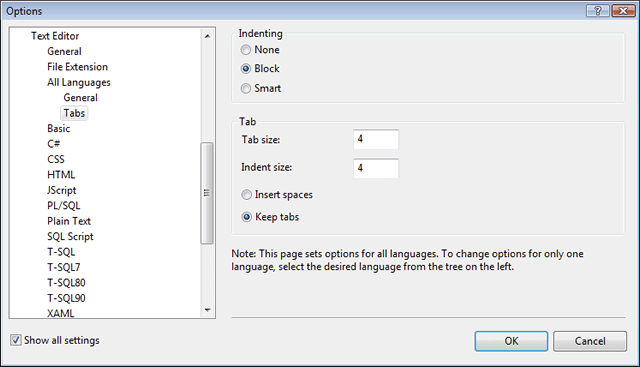
Be aware that Visual Studio defaults to spaces instead of tabs, and requires specific configuration. Below are screenshots of how to changes its default settings. To open this options menu, go to: Tools >> Options.
Tabs - Select block indenting. Set tab/indent size to 4. Select keep tabs.
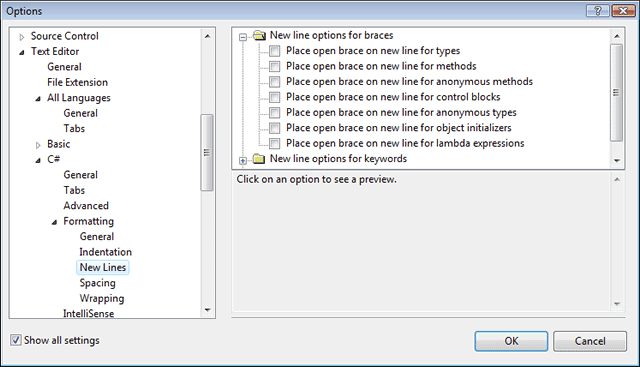
C# - Uncheck all new line brace settings.
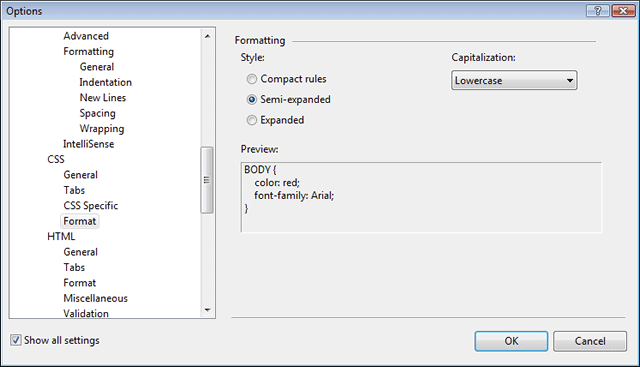
CSS - Select semi-expanded mode. Set capitalization to lowercase.
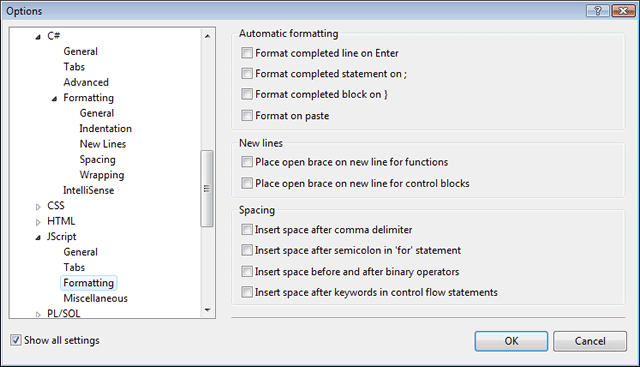
JavaScript - Uncheck all options. Manually format your code instead.
Trailing Spaces
When saving files, manually remove extra lines at the end of all files, so that unwanted space is not inserted. It is also a good habit to ensure all trailing spaces are removed. Many code programs include the ability to strip trailing spaces at the end of a line. To trim space from a file using TextMate, go to the top bar and click:
Bundles >> Text >> Converting / Stripping >> Remove Trailing Spaces in Document
Compression
We prefer readability over file-size savings when it comes to maintaining existing files. Plenty of whitespace is encouraged. There is no need for any developer to purposefully compress HTML or CSS, nor obfuscate JavaScript. We have server-side processes in place that automatically compress and gzip all static client-side files, such as CSS and JavaScript. Since this is done automatically, it is important to remember to keep your code formatted correctly, so that compression does not cause any unexpected errors. This means being purposeful in using semi-colons, and not taking shortcuts such as omitting brackets.
HTML5
HTML5 is a new version of HTML and XHTML. The HTML5 draft specification defines a single language that can be written in HTML and XML. It attempts to solve issues found in previous iterations of HTML and addresses the needs of Web Applications, an area previously not adequately covered by HTML. (source)
HTML Validation
All HTML pages should be verified against the W3C validator, to ensure that the markup is well formed. This in and of itself is not directly indicative of good code, but it helps to weed out problems that are able to be tested via automation. It is no substitute for manual code review.
Note: In TextMate, Control + Shift + V will check the validity of the currently open HTML document.
Self-closing Elements
Though we are using HTML5, which allows for either HTML or XHTML style syntax, we prefer the strictness of XHTML. Therefore, all tags must be properly closed. For tags that can wrap nodes such as text or other elements, termination is a trivial enough task. For tags that are self-closing, the forward slash should have exactly one space preceding it <br /> vs. the compact but incorrect <br/>. The W3C specifies that a single space should precede the self-closing slash (source).
Terseness
Doctype
A nice aspect of HTML5 is that it streamlines the amount of code that is required. Meaningless attributes have been dropped, and the DOCTYPE declaration has been simplified significantly. Additionally, there is no need to use CDATA to escape inline JavaScript, formerly a requirement to meet XML strictness in XHTML.
HTML5 Doctype
XHTML 1.0 Transitional Doctype
Template
The following code snippet can be used as a template for authoring new HTML5 documents. Note that it specifies the language as English by default, but does not contain a directional indicator dir="ltr". This is because browsers will default to left-to-right mode unless told otherwise via dir="rtl".
HTML5 Template
Needless Code
Formerly, in HTML 4.01 and XHTML 1.0, certain attributes were required for code validity, but are not actually necessary for proper parsing by a browser. The following code conventions should no longer be used.
Correct
Incorrect - unnecessary cruft
Tags & Attributes
All tags and attributes must be written in lowercase. Additionally, we prefer that any attribute values also be lowercase, when the purpose of the text therein is only to be interpreted by machines. For instances in which the data needs to be human readable, proper title capitalization should be followed, such as:
For machines
For humans
Quotes
In keeping with the strictness of XHTML code conventions, according to the W3C, all attributes must have a value, and must use double-quotes (source). The following are examples of proper and improper usage of quotes and attribute/value pairs.
Correct
Incorrect
CSS
CSS stands for Cascading Style Sheets, and was the brainchild of Håkon Wium Lie. He initially proposed the concept in 1994, and spent a significant amount of time working directly with Tim Berners-Lee. The following is a visual summary of how CSS works, commonly referred to as "the box model." Further information about CSS is available from the W3C's CSS specification and Håkon's PhD thesis for the University of Oslo.
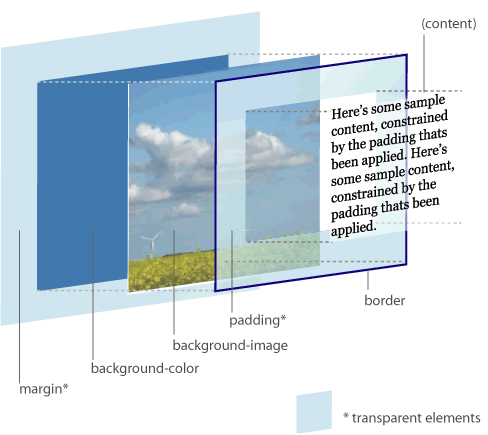
3D CSS Box Model diagram by Jon Hicks.
Inline Styles
We strive to maintain proper separation of content and design, and therefore highly discourage the use of inline style="..." attributes. This not only makes maintenance a nightmare, but inextricably ties the presentation to the data it represents. All of our CSS will be stored in external files, with one master.css file called per page. That single file will incorporate other files as necessary with the @import syntax.
Note: An exception to this rule is style="display:none" for revealing hidden elements via JavaScript.
CSS Validation
All cascading stylesheets should be verified against the W3C validator, to ensure correct syntax and to check for possible accessibility issues with text and background colors. This in and of itself is not directly indicative of good code, but it helps to weed out problems that are able to be tested via automation. It is no substitute for manual code review.
Note: In TextMate, Control + Shift + V will check the validity of the currently open CSS document.
CSS Formatting
To ease potential headaches for maintenance, we require that all CSS be written in a consistent manner. For one, all CSS selectors must be listed on their own line. As a general rule of thumb, if there is a comma in CSS, it should immediately be followed by a line break. This way, we know that all text on a single line is part of the same selector. Likewise, all property/value pairs must be on their own line, with one tab of indentation. The closing brace must be on the same level of indentation as the selector that began it - flush left.
Correct
Incorrect
Also incorrect
Pixels vs. Ems
We use the px unit of measurement to define font size, because it offers absolute control over text. We realize that using the em unit for font sizing used to be popular, to accommodate for Internet Explorer 6 not resizing pixel based text. However, all major browsers (including IE7 and IE8) now support text resizing of pixel units and/or full-page zooming. Since IE6 is largely considered deprecated, pixels sizing is preferred. Additionally, unit-less line-height is preferred because it does not inherit a percentage value of its parent element, but instead is based on a multiplier of the font-size.
Correct
Incorrect
Internet Explorer Bugs
Inevitably, when all other browsers appear to be working correctly, any and all versions of Internet Explorer will introduce a few nonsensical bugs, delaying time to deployment. While we encourage troubleshooting and building code that will work in all browsers without special modifications, sometimes it is necessary to use conditional if IE comments to serve up specific fixes, which are ignored by other browsers.
Fixing IE
Shorthand
In general, CSS shorthand is preferred because of its terseness, and the ability to later go back and add in values that are already present, such as the case with margin and padding. Developers should be aware of the TRBL acronym, denoting the order in which the sides of an element are defined, in a clock-wise manner: Top, Right, Bottom, Left. If bottom is undefined, it inherits its value from top. Likewise, if left is undefined, it inherits its value from right. If only the top value is defined, all sides inherit from that one declaration.
For more on reducing stylesheet code redundancy, and using CSS shorthand in general:
- http://qrayg.com/journal/news/css-background-shorthand
- http://sonspring.com/journal/css-redundancy
- http://dustindiaz.com/css-shorthand
Margin & Padding
Correct
Incorrect - "left" unnecessary
Hex Colors
We prefer hex values for all colors, written in lower-case. No upper-case or RGB, please! Additionally, all colors should be written as tersely as possible. This means that colors such as full blue, which can be written lengthily as #0000FF, should be simply written as #00f. Obviously, for colors that require more precision, all six characters should be used. For example, a light shade of grayish beige: #f9f9f0.
Background
Correct - shorthand
Incorrect - longhand unnecessary
Border
In general, border should be a single line declaration, assuming that the values of the border are the same on all sides of the element. The order in which values are declared are: width, style, and color.
Shorthand - method 1
If the values of each side differ, then there are two possible ways of using shorthand, and it is up to the discretion of the developer to decide which to use. Note that method 2 follows the TRBL pattern.
Shorthand - method 2
Shorthand - method 3
By contrast, the same style declaration is extremely verbose using longhand. This should be avoided, except in instances where only one particular value needs to be overridden, allowing the rest to flow through.
Longhand
Font
Not to be confused with the inadvisable <font> tag, the CSS font property can be written in a few different ways. The shorthand property puts all the aspects of the font into a single declaration, whereas the longhand splits it out over several lines. While the contrast between methods is not as stark as with that of the border property, there is still space to be saved by using shorthand. While line-height can be defined within the scope of the font declaration, but when written in longhand it has its own unique property.
Note: Times New Roman is encapsulated in quotes, because the font name itself contains spaces.
Shorthand
Longhand
Longhand
When overriding only parts of a style, longhand declaration is preferred. This way, by sticking to shorthand for initial style declarations, anytime we see a longhand declaration used, we know that we are specifically overriding only a very precise part of an overall style, thereby leaving other aspects unaffected.
Longhand override
JavaScript
In recent years, JavaScript has taken center stage. Improved browser standardization has made it a more viable tool than in the 1990s. It has shed its reputation as a "dirty" language, used in would-be marketing ploys, forcing users to view repeated pop-up advertisements. Large scale web applications are pushing the envelope, blurring the barrier between the browser and desktop apps. A flagship example is Google Maps, one of the first web applications to boast real-time interactivity. This "Ajax" approach was first coined by Jesse James Garrett in his article - Ajax: A New Approach to Web Applications.
JS Validation
All JavaScript should be validated using the TextMate bundle called JavaScript Tools. Alternatively, there is a browser based validator called JSLint, created by Douglas Crockford. The purpose of this is twofold, to guard against careless coding practices, and also to ensure that when we run our server-side minification and gzip processes, that all JavaScript will "compile" down to a format that remains usable, and not throw errors due to malformed code. This can result from short-hand if statements and omitted semi-colons.
Frameworks
Depending on the project (old or new) we make use of Prototype (and Scriptaculous) or jQuery:
The benefits of using a library are far-reaching, especially with a team of developers:
- Consistent coding style.
- Increases maintainability.
- Improvements made to core.
- Not re-inventing the wheel.
- Files hosted by Google Ajax.
Ajax - Forms
Using the Prototype JavaScript library, a developer can submit a form request via Ajax, to process data without refreshing the page. This simply involves having an onsubmit handler associated with a form, which passes the form's action and inputs to the server, and receives a response that can be rendered.
HTML example
The following is the bare minimum required to submit a form via Ajax. A more robust solution would involve the use of an onFailure event handler, for a case in which the server does not return a valid response.
Ajax - Misc
In cases where Ajax interaction is necessary but using a form element is not applicable, a developer can perform a request by using the Ajax.Request method directly, via an event listener on an element.
Type Coercion
Unlike strongly typed languages such as Java or C#, JavaScript will perform type coercion when evaluating conditional statements. This sometimes creates awkward scenarios in which numerical values are seen as false or the existence of a string is mistaken for true. This is typically disadvantageous.
To ensure a strict level of comparison, as might be seen in a strongly typed or compiled language, JavaScript (like PHP) has a triple-equals operator ===. In similar fashion, it also has a strict negation operator !==. Consider the following examples of potential pitfalls when it comes to evaluating comparisons.
As you can see in the example above, simply using == and != is insufficient because it makes for potentially unpredictable results. Therefore, the stricter comparison operators should always be used. There is never a good reason to use the lesser form of comparison operators. To simply for the existence of elements in the DOM, there is an even more abbreviated way, that leaves no room for ambiguity. If you are unsure if certain elements will be present in an HTML page, use one of the following techniques.
White-space
In general, the use of whitespace should follow longstanding English reading conventions. Such that, there will be one space after each comma and colon (and semi-colon where applicable), but no spaces immediately inside the right and left sides of parenthesis. In short, we advocate readability within reason. Additionally, braces should always appear on the same line as their preceding argument.
Consider the following examples of a JavaScript for-loop...
Correct
Incorrect
Also incorrect
Variables, ID & Class
All JavaScript variables shall be written in completely lowercase letters, with underscores to separate words if need be. Likewise, all id and class declarations in CSS shall be written in the same manner. Neither dashes nor camelCase shall be used, except for words that contain dashes when written in plain English.
Quotes
The preferred method of delineating strings is to use single quotes for everything. Since JavaScript exists to manipulate markup, and because HTML is generally written with double quotes in W3C specifications, using single quoted strings will better facilitate handling HTML fragments, and keep code more readable.
Correct
Incorrect - overly verbose
If-Else Conditions
When writing if, else, and else if conditionals, braces {...} must always be used. The opening brace should be placed on the same line as the condition(s) being evaluated. All else statements should begin on their own line, immediately following a closing brace. The "one true brace" style should never be used. This same bracket paradigm should be applied to all functions and switch-case statements as well.
Correct
Incorrect
Also incorrect
Event Listeners
Rather than using attributes such as onload, onfocus, onsubmit, or onclick directly in markup, we will instead attach event listeners to these elements via unobtrusive techniques. The reasoning for this is the same philosophy that is behind not using inline style="..." declarations. So doing inextricably ties the behavior of a web page to its data, and makes maintenance more difficult.
Read more about jQuery and Prototype event listeners:
Event Delegation
When assigning unobtrusive event listeners, it is typically acceptable to assign the event listener directly to the element(s) which will trigger some resulting action. However, occasionally there may be multiple elements which match the criteria for which you are checking, and attaching event listeners to each one might negatively impact performance. In such cases you should use event delegation instead.
Further reading:
- http://icant.co.uk/sandbox/eventdelegation/
- http://prototypejs.org/api/event/observe
- http://docs.jquery.com/Events/live
Closures & Scope
To maintain proper scope for variables, it is highly recommended that self-executing anonymous function be used as a closure. For the most part, variables defined correctly using the var syntax, within the scope of a function will not add to global scope pollution. However, from time to time, you may need to access variables via two or more functions. In such cases, multiple functions can be grouped together inside a closure.
Objects & Arrays
Objects can be thought of as tiered variables that contain multiple attributes. Similarly, an array could be described as a list of data that all share common characteristics. The following code snippets show examples of objects and arrays, and the different ways in which they can be defined. Note that values such as John Doe's age and marital status do not have quotation marks around them. This is because age is truely numerical, and true is a Boolean value.
Objects (and arrays) are an important part of JSON - JavaScript Object Notation, which is a platform and language independent way of transmitting data, used as an alternative to XML. For a few caveats on how JSON differs from typical JavaScript object syntax, read this article by Simon Willison.
Object literal - preferred
Object dot notation
Array literal - preferred
Array bracket notation
Debugging
Even with the best of validators, inevitably browser quirks will cause issues. There are several invaluable tools which will help to refine code integrity and loading speed. It is important that you have all of these tools available to you, despite the browser you primarily use for development. We recommend developing for Firefox and Safari first, then Google Chrome and Opera, with additional tweaks via conditional comments just for Internet Explorer. The following is a list of helpful debuggers and speed analyzers...
Firefox
- Web Developer Toolbar
- DOM Inspector
- Firebug - depends on DOM Inspector
- Page Speed - depends on Firebug
- YSlow - depends on Firebug
Safari
Google Chrome
Opera
Internet Explorer
C#
Fields
Fields should always be declared and initialized at the top of the Class, Method, or Property. Keeping fields at the top reduces confusion and improves a developer's ability to quickly understand the code.
Private class level field (camelCase prefixed with an "_")
Public class level field (PascalCase)
Method / Property level field (camelCase)
In special cases, such as the one below, the word "ID" will ignore the case rules.
Private class level field (camelCase prefixed with an "_")
Public class level field (PascalCase)
Method / Property level field (camelCase)
Special case: "ID"
Classes
Class Naming
All classes should be written in PascalCase and should be singular. If it is a collection, it should be pluralized and end in the word "Collection." Physical code files can contain multiple classes only if the classes implement the same type. For instance: AClass and AClassCollection.
Simple, basic POCO (Plain CLR object)
Collection, basic POCO (Plain CLR object)
Class Declaration
All class declarations should have access modifiers.
With public declaration
Class Constructors
By default, the C# compiler will give all classes a default constructor. Sometimes the default constructor needs to be "privatized" or constructors need to be overloaded. Something else to note about constructors is any C# POCO that has a public default constructor can make use of object initializers.
Default constructor using the C# compiler
Default constructor coded
Overloaded
Object Initializers
Defaulting or calling another constructor within the same class
Fields - Properties - Methods - Events
| Fields | All private, public fields will be declared at the top of the class just under the declaration. |
|---|---|
| Properties | All properties should be declared just under any class level field declarations. |
| Methods | All methods should be declared just under any property declarations. |
| Events | All events should be declared just under any method declarations. |
Items ordered
Field Use in Classes
When using a non-private field with in the same class as it is encapsulated in the this keyword must be used. When using a field from a derived or base class the base keyword must be used. This will help developers instantly understand where fields are located.
Non-private, incapsulated field
Field from a derived or base class
Methods
Method Naming
Methods should typically be written in PascalCase, named to reflect how they should be used.
Correct
Incorrect
Method Parameters
All parameters should be camelCase, named after their type.
Correct
Incorrect
Method Signatures
All method signatures should have access modifiers, followed by return type. Proper scoping of the method must be considered. If the method is only used by this class, assign a private access modifier.
Correct
Incorrect
Return values
Methods will only ever have one return keyword. This reduces confusion and complexity. If more than one return keyword cannot be avoided, the code must be refactored.